

Beginning May 1st, 2025, members who visit a Shared Branching credit union out of state will need to verify their identity with IDCheck. IDCheck is a secure and streamlined verification process that saves time when you visit a Shared Branch credit union. The authentication process adds a layer of protection to help prevent fraud.
Use IDCheck When Visiting a Co-op Shared Branch Credit Union
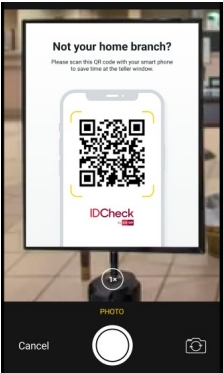
1 – Scan the QR code displayed in the branch or click here to begin
Scan the QR code on your smart device, such as a smartphone, accept the Terms & Conditions, and tap Start.

2 – Provide your credit union’s name
Type the name of your home credit union, and tap Next.

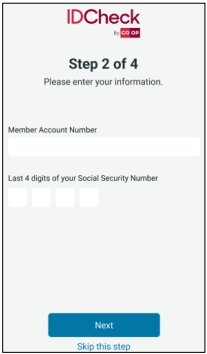
3 – Supply your information
Type your account number and the last 4 digits of your SSN. Then tap Next.
4 – Take a picture of your ID
Select I Agree to accept the Terms for Socure to Authenticate. (Note: Socure is the partner supporting IDCheck)
Note: IDCheck does not support military IDs due to a federal regulation that does not allow federal IDs to be copied/photographed.
Tap Start Verification.

IDCheck guides you in taking a picture of the front and back of your government-issued ID. When taking a picture of your ID:
- Be sure to allow access to your camera
- A frame appears around your ID so you know how close to hold your device, such as a smartphone, to help ensure all parts of the ID are captured. Line the guide up with the shape of your license.
- Try a more plain (solid) background that contrasts with the ID (is a different color than the ID)
- Avoid glare and shadows
- Hold the device steady
5 – Take a selfie
IDCheck guides you to take a selfie, which is used to validate your ID

6 – Receive an access code
When verification is complete, you receive an access code. The code will let the credit union know your ID has been verified. Take the code to the credit union’s frontline staff, who will perform your transaction. If this is your first time going through this process, you will see a pop-up on this screen offering the option to be remembered for an expedited flow the next time.

Note: The access code is active for 20 minutes. If it expires, you need to begin the process again by scanning the QR code.
7 – Stored verification option
On your next visit, IDCheck prompts you to use the authentication information it recognizes. You can skip the other steps (you do not need to take a photo of your ID or yourself) and then you will receive an access code to take to the frontline staff.
Note: On a subsequent visit, IDCheck will prompt you to provide information and take a picture of your ID and selfie again if a situation like the following has occurred: You have a new smart device, or the ID previously used for verification has expired.